Skip to content
NEW: Martech Stack Builder on your phone →

Phone companion

Your stack on your phone, for the jobs away from your desk

Vote on a change request between meetings. Open the negotiation one-pager before the vendor calls. Check what a stack holds, or ask it a question. It installs from the browser, and it signs in with an emailed link or code.

Open app.martechstackbuilder.com on your phone. Included with every account.

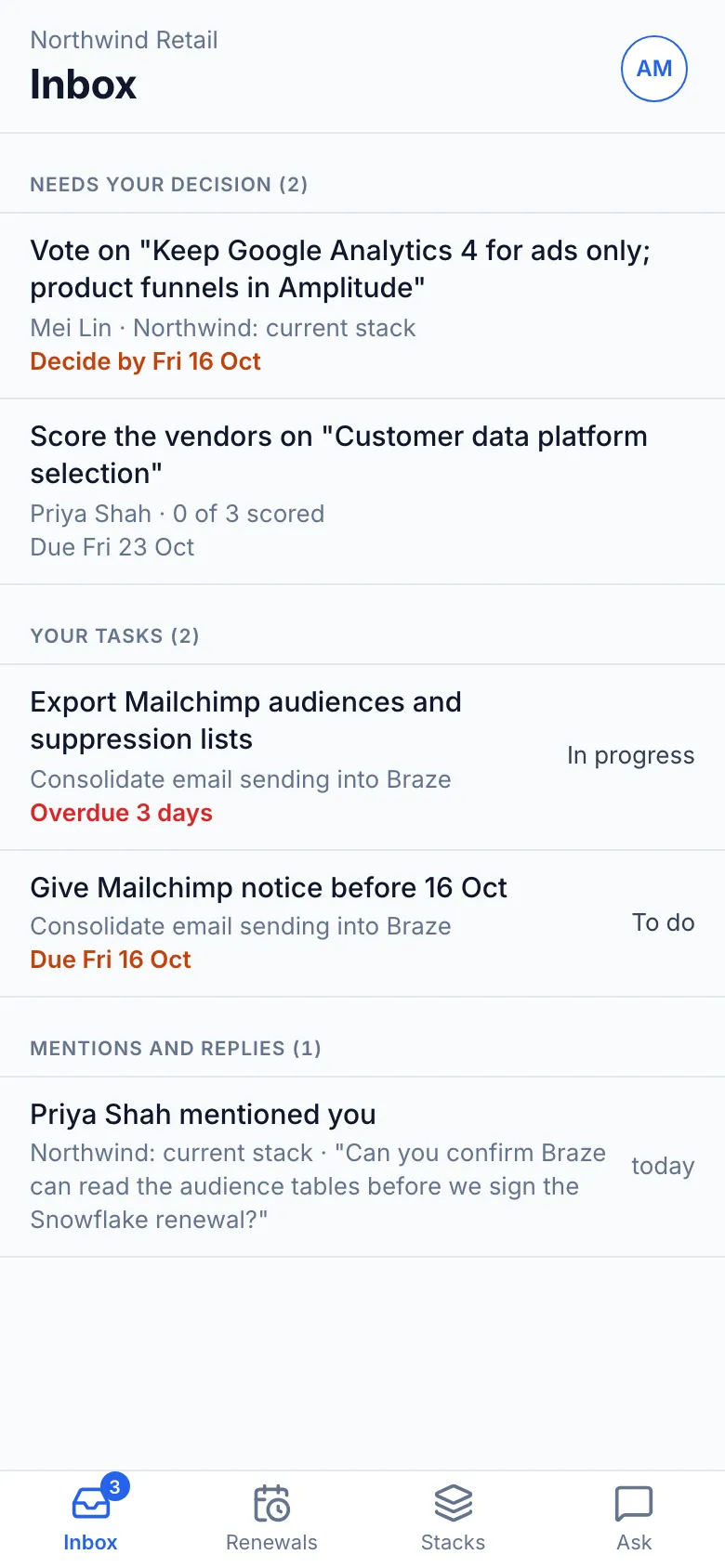
The Inbox on the phone: a change request vote and an RFI to score under Needs your decision, two tasks (one overdue by 3 days), and a mention, with Inbox, Renewals, Stacks and Ask tabs along the bottom

What you can do on the phone

Four tabs: Inbox, Renewals, Stacks and Ask. Your workspaces, notification switches and team sit behind your initials in the corner.

Approve on the go

The Inbox holds what is waiting on you: change requests that need your decision, your tasks, sorted with the overdue ones first, and mentions and replies from the discussions you’re in.

  • Read why the change is wanted, what it adds or removes, the annual cost impact and who has already voted.
  • Approve, request changes with a note, or abstain. You can change your vote while the request is still open.
  • Once the change is applied, its tasks are listed. Tick off your own when it’s done.

Plan: Every plan. Approvers on a Team workspace do not take a paid seat.
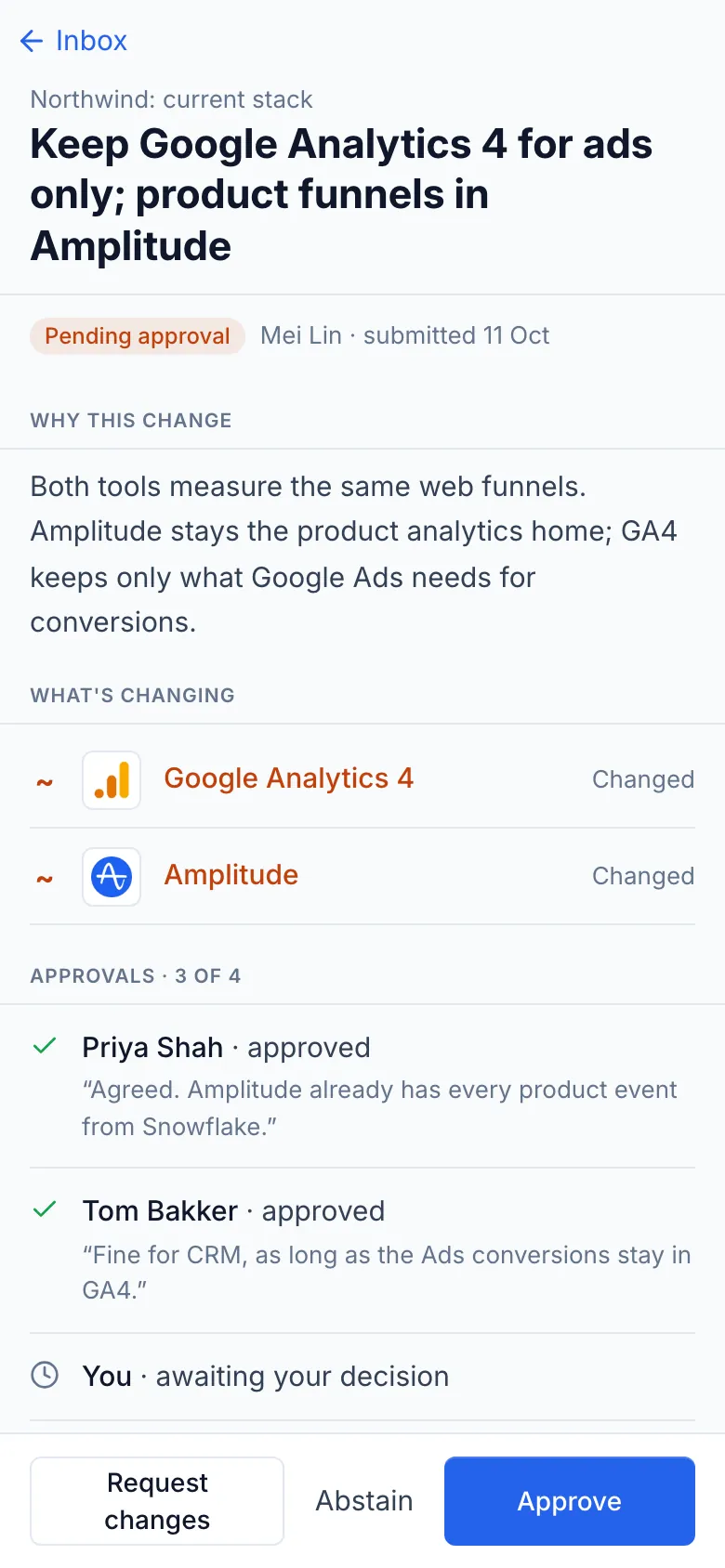
A change request on the phone, “Keep Google Analytics 4 for ads only; product funnels in Amplitude”: why the change is wanted, the two tools it changes, two of three approvals in with each approver’s note, and Request changes, Abstain and Approve buttons at the bottom

Prepare for a renewal call

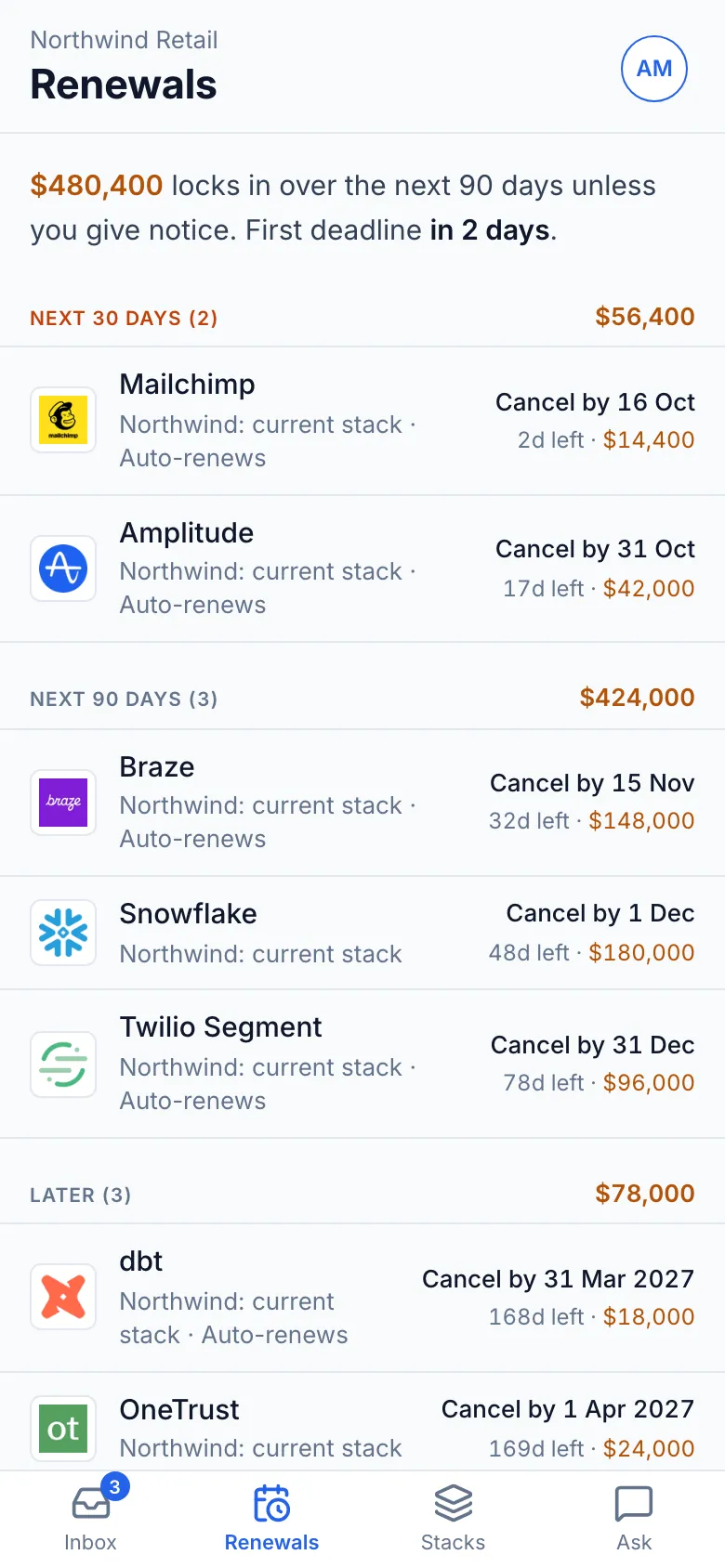
Renewals lists every tool with a renewal date across the workspace’s stacks, grouped by the date you must give notice, with a subtotal per group.

  • Each row leads with the notice-by date and the days left, not the renewal date.
  • Tools that have a cost but no date are listed underneath. If you can edit the stack, add the date there.
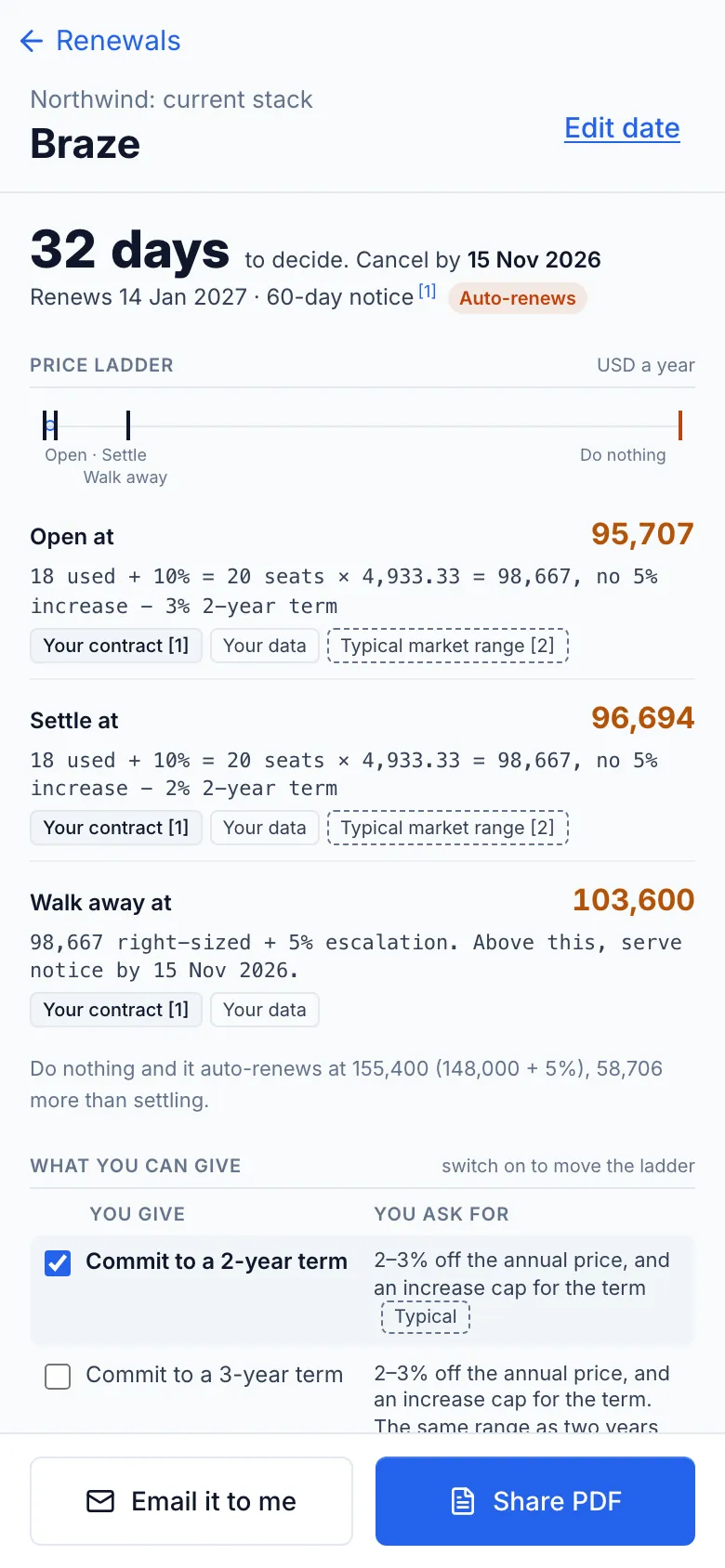
  • Open a tool’s negotiation one-pager before the call: the opening, settle and walk-away prices with the arithmetic behind them, the trades you can offer and the questions to ask.
  • Email it to yourself, or share it as a PDF.

Plan: Renewal dates, reminder emails and the list are on every plan. The negotiation one-pager is on Consultant and up.

The Renewals tab: $480,400 locks in over the next 90 days and the first deadline is in 2 days, with Mailchimp and Amplitude due within 30 days, Braze, Snowflake and Twilio Segment within 90, and dbt and OneTrust later, each with its cancel-by date, days left and annual cost

Check what is in a stack

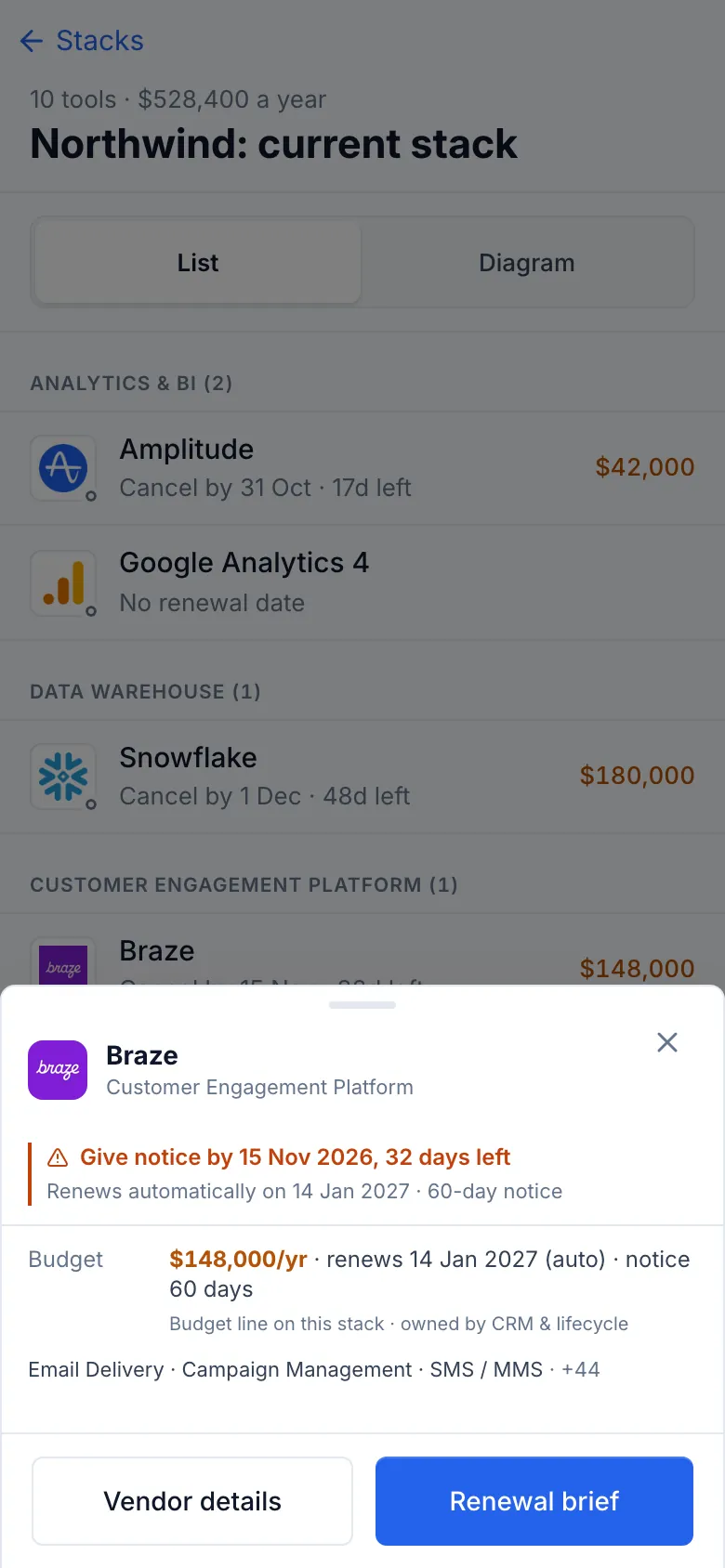
Stacks shows the workspace’s stacks with their tool count, annual cost and any deadline in the next 30 days.

  • Open one as a list grouped by category, with each tool’s cost and renewal, or as a read-only diagram you can pinch to zoom.
  • Tap a tool for its card: the notice date, the budget line and a way into its negotiation one-pager.

Plan: Every plan.

Northwind’s current stack listed by category with costs and cancel-by dates, and the Braze card open at the bottom: give notice by 15 Nov 2026, 32 days left, $148,000 a year, with Vendor details and Renewal brief buttons

Ask a question about your stack

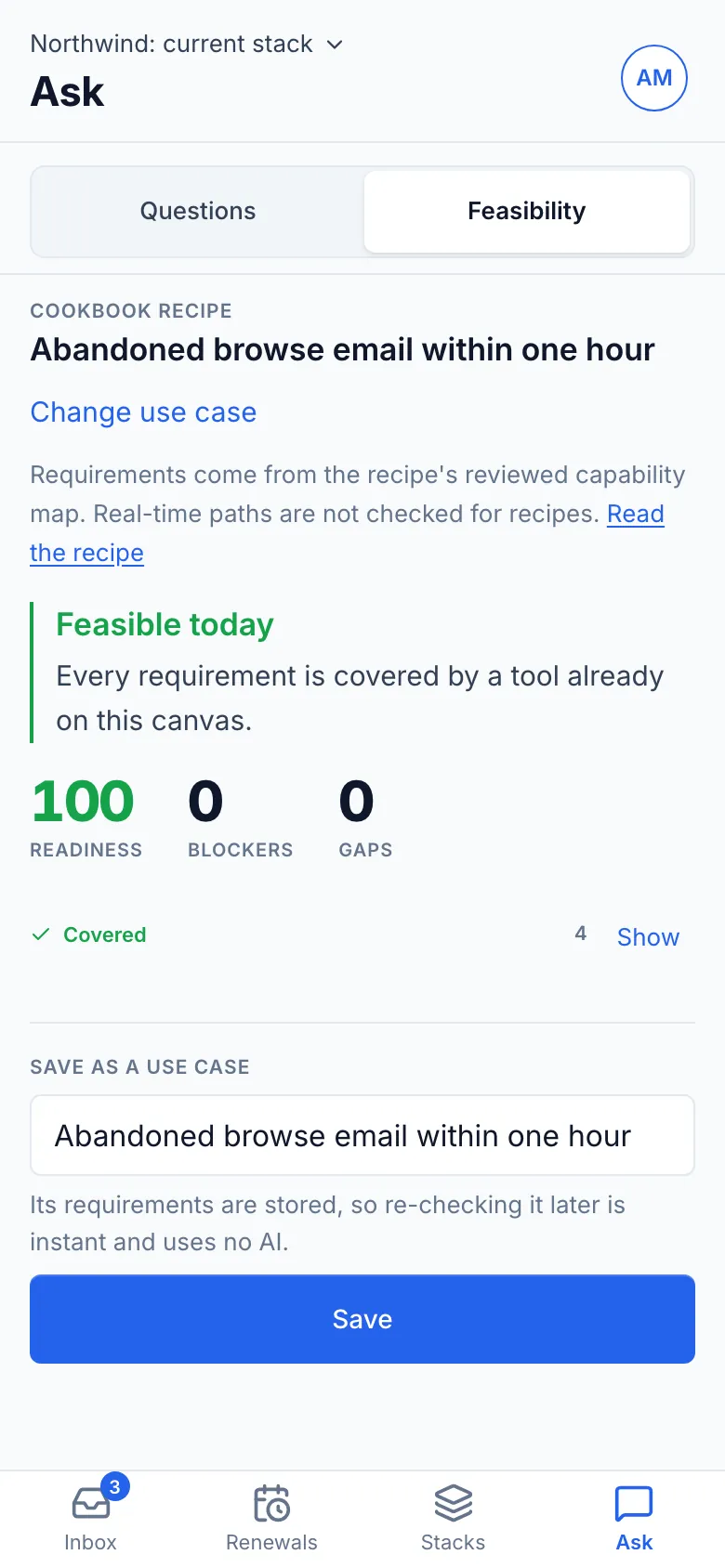
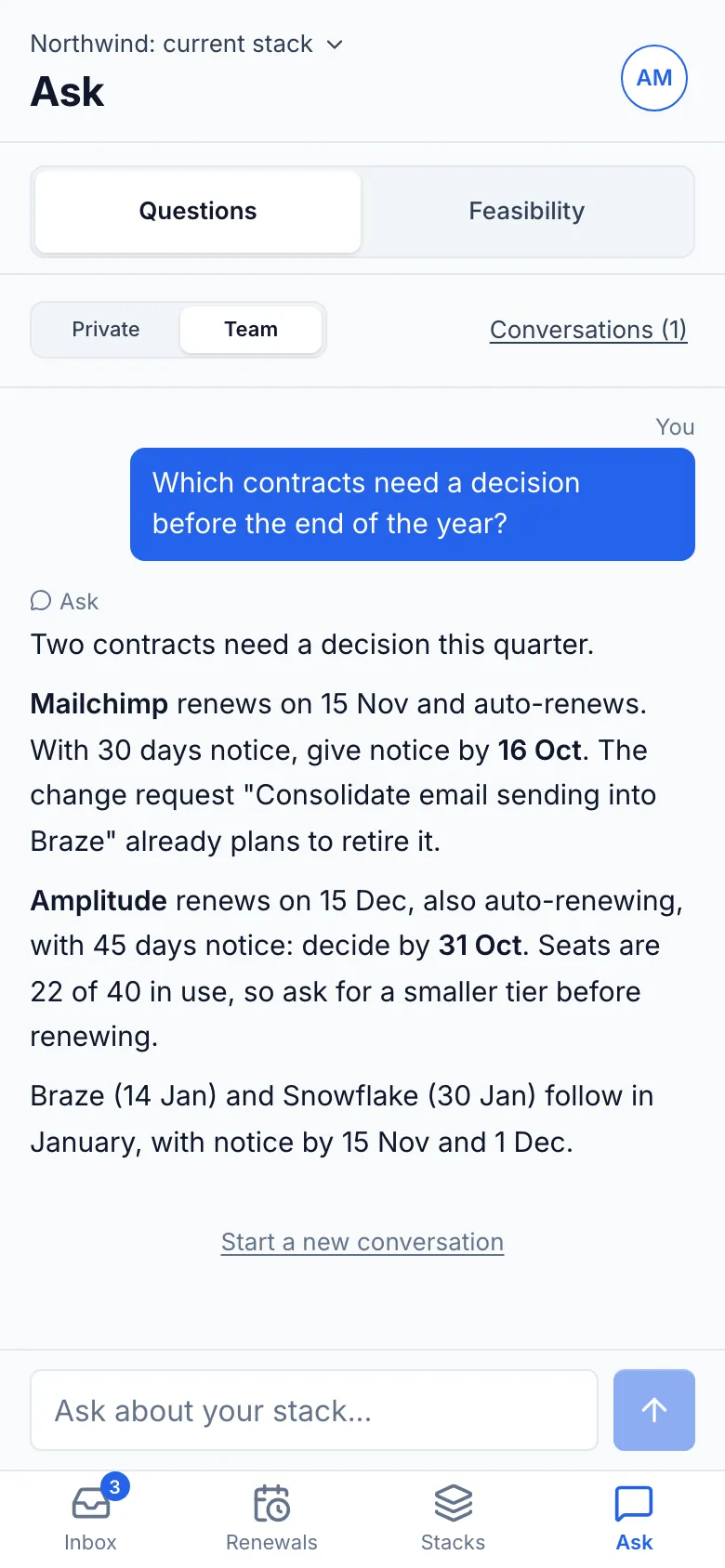
Ask has two modes. Research answers questions about the stack you pick, and says where the answer came from. Feasibility checks whether the stack can run a use case.

  • Research uses the same AI allowance as the desktop chat, and picks up the same conversation about that stack.
  • Feasibility with a Martech Cookbook recipe is checked against the capability record. It makes no AI call.
  • Describe your own use case and it is broken into the capabilities it needs, then checked the same way.

Plan: Research: a few questions on the free plan, more on Pro. Cookbook recipe checks: every plan. Your own use case: Pro. Saving it as a use case: Consultant.

A Feasibility result for the recipe “Abandoned browse email within one hour”: feasible today, readiness 100, no blockers and no gaps, with every requirement covered by a tool already on the stack

Stay notified

Turn on push for this phone and the things that need you soon arrive on the lock screen. Tap one and it opens on the screen it is about.

  • A change request waiting on your decision, a task assigned to you, due soon or overdue, a mention, an overdue renewal, a vendor outage.
  • Push follows your email categories and quiet hours. Email and push have separate switches, so you can have push without the email.
  • On Android it works in Chrome. On iPhone, add the app to your Home Screen first: Safari only allows notifications from there.

Plan: Every plan.

Illustration. The wording is the notification the app sends.

Your team, from the same menu

In a team workspace, the Team screen lists members, roles and pending invitations, and how many paid seats are in use. Owners and admins invite by email. If an invite would add a paid seat, the phone says so before it is sent, with the new monthly price when it can read it, and offers to invite the person as a free approver instead.

Plan: Team workspaces.

What stays on desktop

The phone does not try to be the builder. A link to something desktop-only says what it is and offers to email it to you.

  • Building and editing stacks

    The canvas, templates, connections and costs are edited on a desktop. The phone shows a stack; it does not change it.

  • Writing a change request

    You approve or request changes on the phone. New requests are written on a desktop.

  • RFIs

    Writing and scoring an RFI happens on a desktop. An RFI link on the phone shows its status, how many vendors have answered and the deadline.

  • Settings, billing and exports

    The phone has two switches: email, and push on this phone. Categories, quiet hours, billing and exports stay on desktop.

Install it from the browser

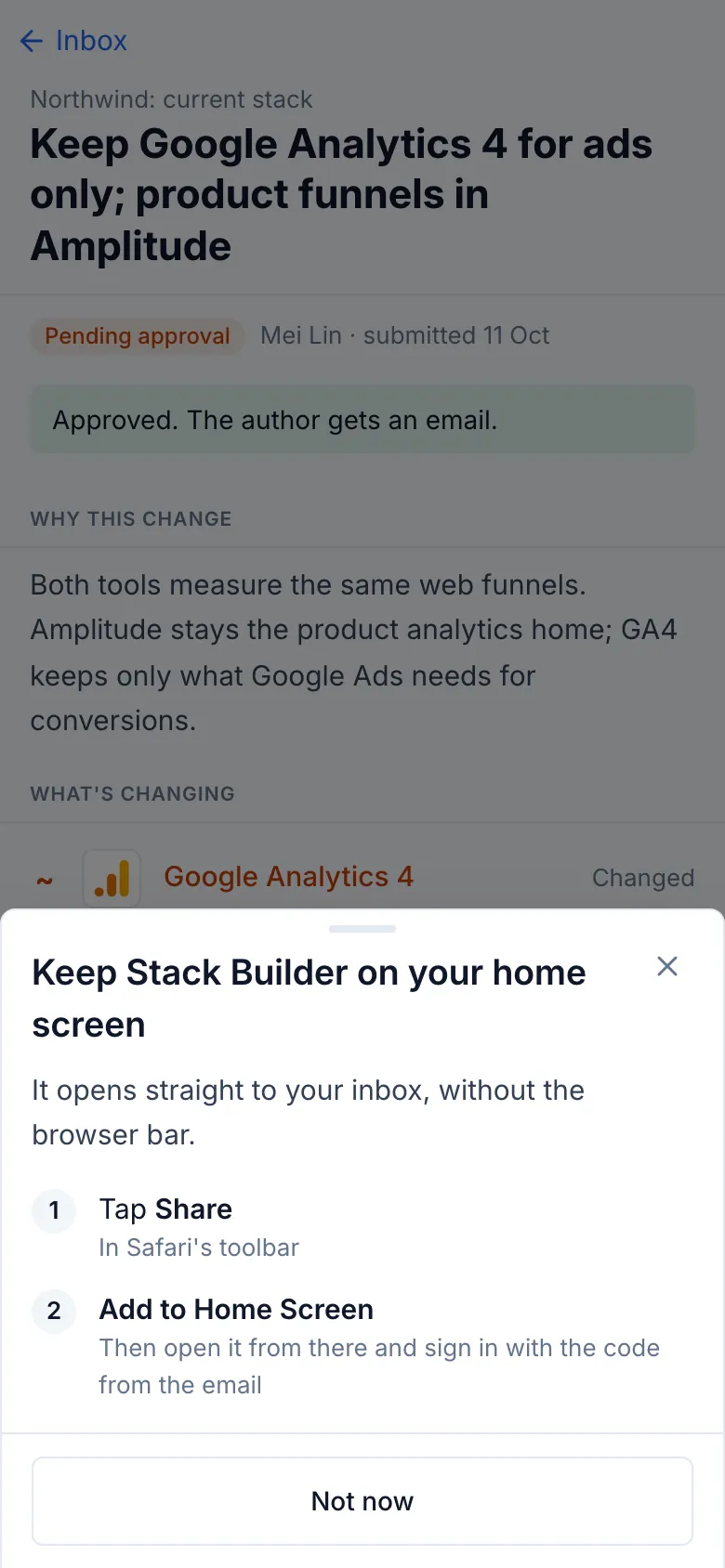
You can use it in the browser as it is. On the home screen it opens straight to your Inbox, without the browser bar.

iPhone

  1. Open app.martechstackbuilder.com in Safari.
  2. Tap Share.
  3. Tap Add to Home Screen.
  4. Open it from the Home Screen and sign in there with the code from the email.

Android

  1. Open app.martechstackbuilder.com in Chrome.
  2. Open the menu and tap Install app or Add to Home screen.
  3. Or let the app offer it: once you have finished something on a second visit, it shows an Install button.

Signing in

Enter your email and we send you a sign-in link. Tap it on the phone and you land on whatever you opened, such as the change request from a notification email. If the email shows a code, you can type it instead. The Home Screen app on iPhone needs the code, because it does not share Safari’s sign-in.

No account yet? The same link creates one.

Sign in on your phone
The app’s own install prompt on iPhone: Keep Stack Builder on your home screen, with two steps, tap Share, then Add to Home Screen

What each plan gets on the phone

The companion comes with every account. A screen that belongs to a paid feature needs the same plan as on desktop, shown here as the lowest plan that includes it.

On the phone Plan
Inbox: decisions, tasks, mentions and replies Every plan (mentions come from Team workspaces)
Renewals list, renewal dates and reminder emails Every plan
Negotiation one-pager, by email or as a PDF Consultant
Stacks, diagrams and tool cards Every plan
Research questions A few on Free; Pro and up within the monthly AI allowance
Feasibility with a Cookbook recipe Every plan
Feasibility for your own use case Pro
Saving a use case Consultant
Team: members, invites, seats Team workspaces; owners and admins invite
Push notifications Every plan

Prices and limits for each plan are on the pricing page. Everything the product does, phone or desktop, is on the features page.

Two more screens

The Braze negotiation one-pager on the phone: 32 days to decide, cancel by 15 Nov 2026, a price ladder opening at 95,707, settling at 96,694 and walking away at 103,600 with the arithmetic under each, the two-year term ticked as a trade, and Email it to me and Share PDF buttons

The negotiation one-pager (Consultant)

Ask, in a team conversation about Northwind’s current stack: the question “Which contracts need a decision before the end of the year?” and an answer naming Mailchimp and Amplitude first, with their notice dates, then Braze and Snowflake

Research on a stack

Frequently Asked Questions

Is there an app in the App Store or Google Play?
No. The phone companion is the web app at app.martechstackbuilder.com. Add it to your home screen and it opens like an app, without the browser bar. Nothing to download from a store.
Does it cost extra?
No. Every signed-in account gets the phone companion. Screens that belong to a paid feature keep the same plan they need on desktop, such as the negotiation one-pager on Consultant.
Can I edit a stack on my phone?
No. The phone is for reading, deciding and asking. You can set a renewal date on a tool if you can edit that stack, and update your tasks. Everything else that changes a stack happens on a desktop.
What happens when I tap a link that only works on desktop?
The phone says what the link is and offers to email it to you, so it is waiting when you are back at a desk.
Why do I only get push notifications on iPhone after adding it to the Home Screen?
Safari only lets a web app send notifications once it is on the Home Screen (iOS 16.4 or later). On Android, Chrome can send them straight away.
Which notifications arrive as push?
The ones that need you soon: a change request waiting on your decision, a task assigned to you, due soon or overdue, a mention, a renewal that is overdue, a vendor outage. Push follows your email categories and quiet hours. Anything your email would save for a digest stays in the digest.

Open it on your phone

Sign in at app.martechstackbuilder.com on your phone. Approvals, renewals and your stacks are there with the account you already have.

No credit card required. Free plan available.